


Raise the W300 flip-up screen to frame yourself, or use it folded down for regular shooting. This guide explains battery and card setup, focus and lighting, the nearby XDV PRO connection, file transfer and technical specifications.
Install the Battery and Card
Turn the camera off. Open the side battery compartment and insert the removable lithium-ion battery in the keyed orientation. Insert a TF / microSD card up to 256GB into the side slot until it clicks. Back up any existing files before formatting. Press MENU, then Right, select Format with Up/Down and confirm with OK. Formatting erases the card contents.
Charge and Set Up
With the battery installed, switch the camera off and connect the Type-C cable to a suitable power adapter. The red light stays on while charging and turns off when full. Begin charging at 10–30°C. Press Power briefly to turn on and hold it to turn off. Set language and date/time through MENU, Right and the system settings. The blue indicator stays on while the camera is powered on.
Flip the Screen and Focus
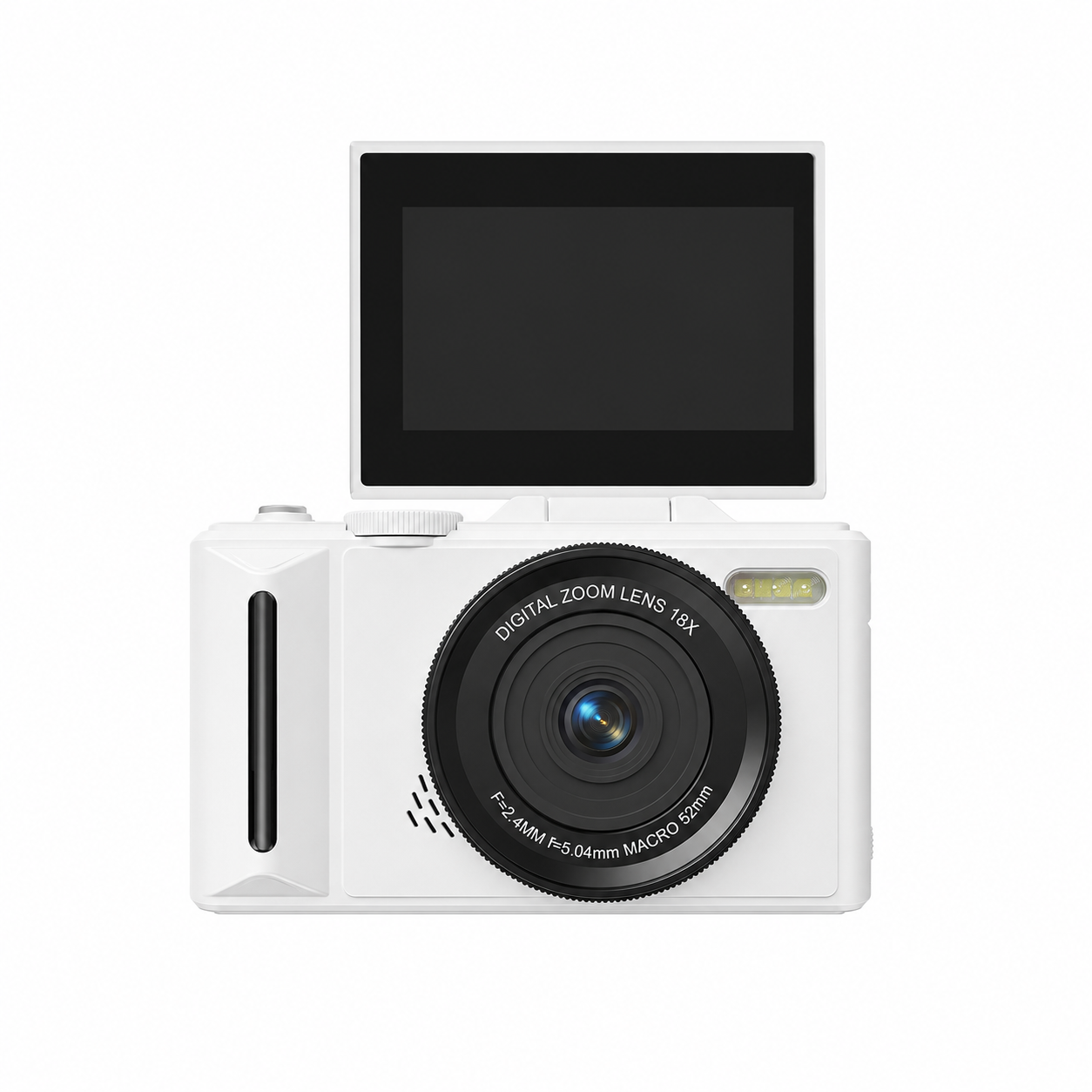
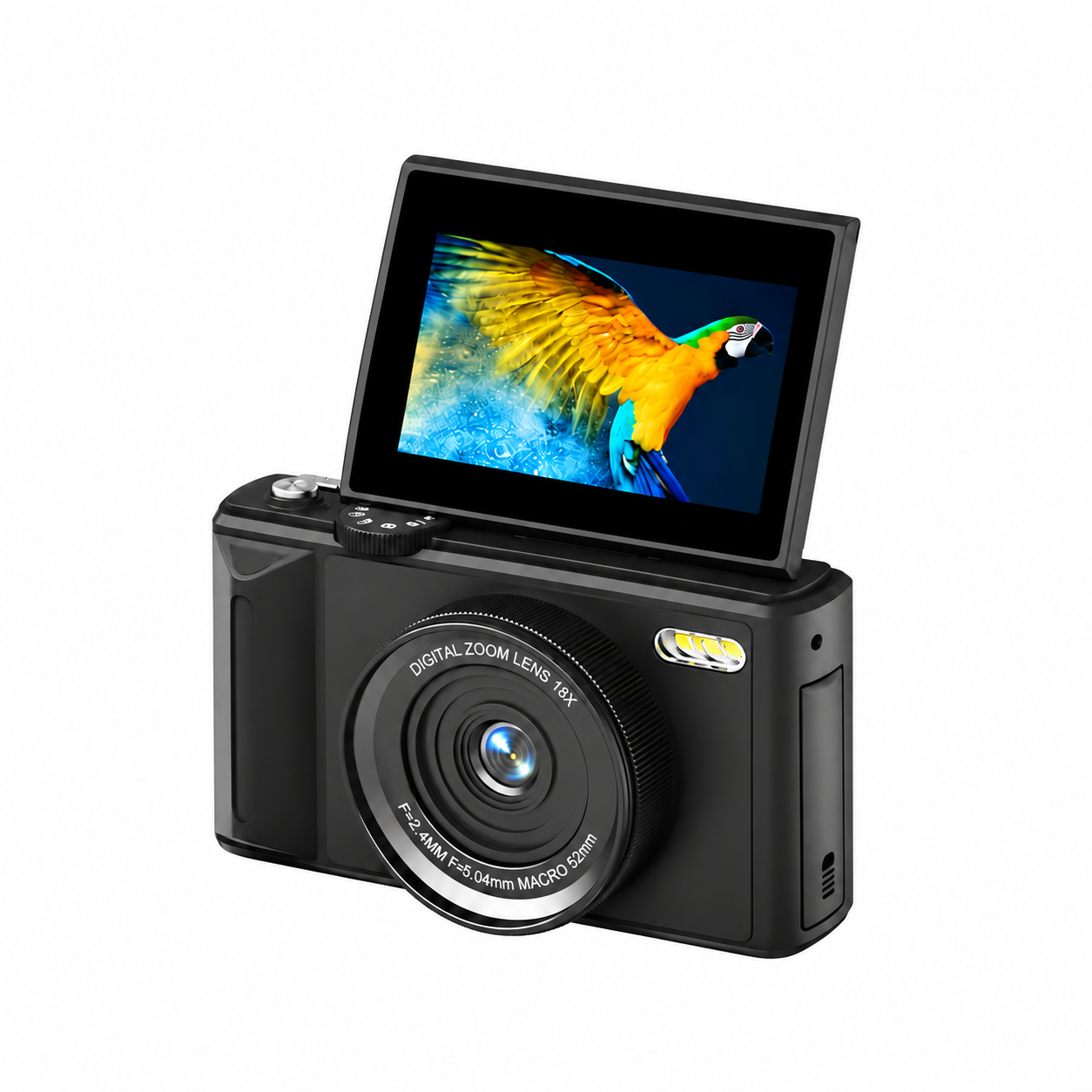
Raise the 3.0-inch screen up to 180° to check selfie framing. Select Photo on the mode dial, hold the camera steady and half-press Shutter. When the green focus box appears, press fully to take the picture. T zooms in and W zooms out using digital zoom. Auto Focus, Manual Focus and Fixed Focus are available in the system menu. Fold the screen back for regular rear-screen framing.
Choose Photo Modes and Filters
Use the mode dial for regular photos, Self-Timer, Continuous Shooting or Automatic Photography. In Self-Timer, select Countdown and choose 2, 5, 10, 15 or 30 seconds. Continuous Shooting provides 3 or 5 consecutive shots. Left/Right select filter effects from the main interface. Photo sizes range from 3M to 80M; options above the 12MP sensor resolution are interpolated. Choose a size to suit storage and sharing needs.
Record Video and Use Fill Light
Select Regular Recording on the mode dial. Half-press to focus, then press fully to start video; press again to stop. The video resolution choices are 5K, 4K, 2.7K, 1080P and 720P. Separate dial modes offer Video + Photo, Loop Recording, Time-lapse Recording and Slow-motion Recording. The fill-light shortcut cycles Off, Auto and On. The LED flashes for photos and stays on as fill light for video.
Connect XDV PRO over Wi-Fi
Install XDV PRO using the app QR code in the manual. On the camera, press MENU, then Right, select Wi-Fi and turn the hotspot on. Read the network name and password on the camera screen. On the phone, open Settings, then WLAN, and join that network. Open XDV PRO and tap Connect Camera to access photo/video controls and menu settings. Use the transfer function to move captured files to the phone. Stay within the camera Wi-Fi range; this direct connection does not provide Internet access.
Review, Copy Files and Use USB Webcam Mode
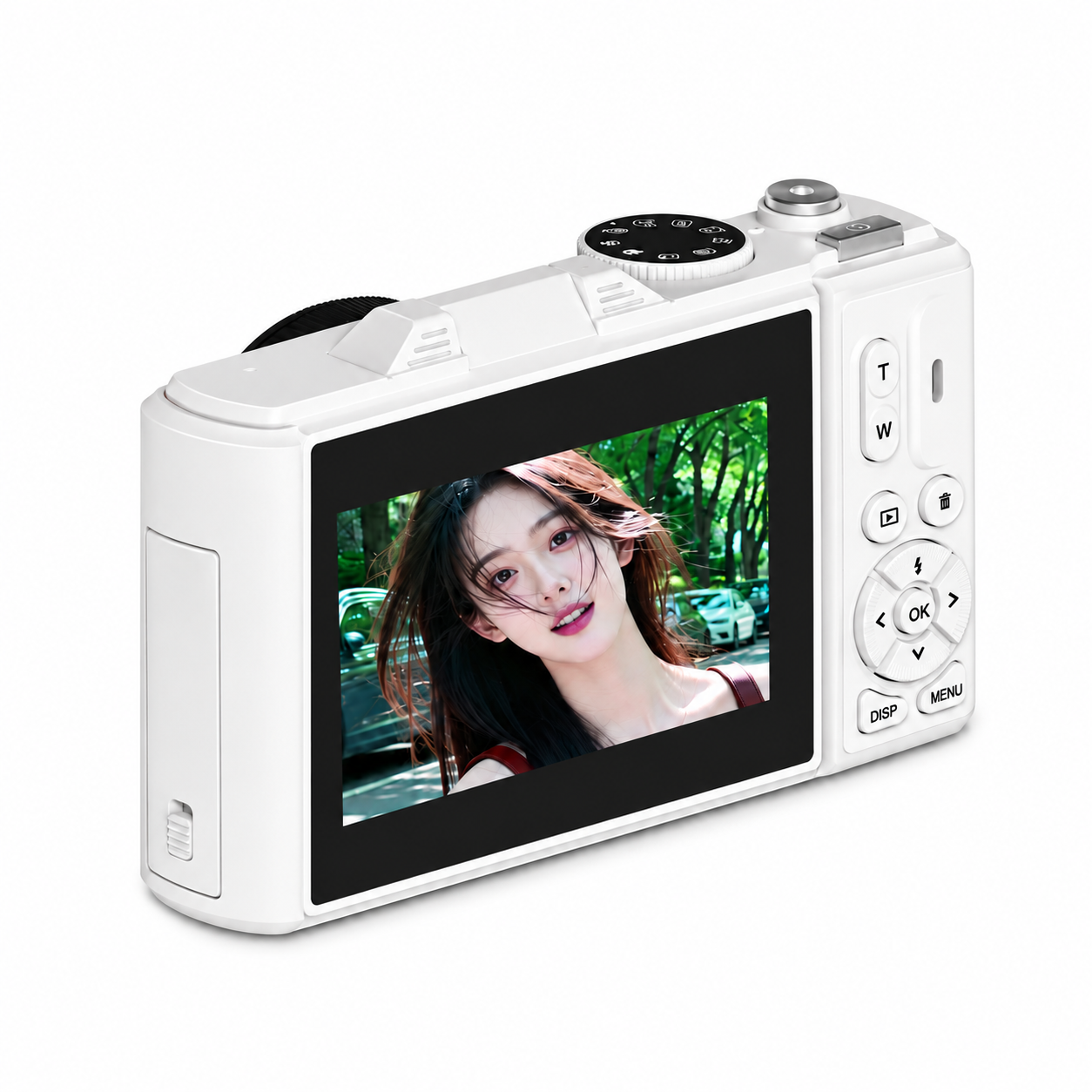
Press Playback and browse with Left/Right. Press OK for photo preview or video play/pause; T/W zooms photos and the arrow buttons pan. Use Delete for the selected file and confirm only when ready to erase it. For computer transfer, power on and connect Type-C, choose Storage Mode and copy files before disconnecting. Choose Network Camera for USB webcam use, then select the USB video device in compatible computer camera or streaming software. Charging Mode is the third USB option. Computer USB charging can be slow; switch off and use wall power for a full charge.
Care and Troubleshooting
The camera is not waterproof; keep it away from rain and liquids. Clean the lens and display with a soft lens cloth. For an unrecognized card, check that it is TF / microSD, no larger than 256GB, fully inserted and formatted for the camera. For charging problems, check battery seating, cable and adapter and use the recommended temperature range. For focus problems, hold steady and half-press the shutter. If the computer cannot connect, check the data cable, USB port and operating-system compatibility. Remove the battery for extended storage and keep the camera dry and dust-free below 30°C.
Technical Specifications
| Model | W300 |
|---|---|
| Image sensor | 12MP CMOS; 1/2.7-inch sensor format |
| Display | 3.0-inch display with 180° flip-up screen |
| Digital zoom | 18× digital zoom; no optical zoom |
| Lens | F2.4; focal length 5.04mm |
| Photo output options | 80M / 75M / 64M / 56M / 48M / 30M / 24M / 20M / 12M / 8M / 5M / 3M. Settings above 12MP are interpolated |
| Video resolution options | 5K / 4K / 2.7K / 1080P / 720P |
| Focus modes | Auto Focus / Manual Focus / Fixed Focus; half-press shutter to focus |
| Image stabilization | Electronic image stabilization |
| Shooting modes | Regular Photography / Video + Photo / Loop Recording / Time-lapse Recording / Slow-motion Recording / Regular Recording / Continuous Shooting / Self-Timer / Automatic Photography |
| Self-timer | 2 / 5 / 10 / 15 / 30 seconds |
| Continuous shooting | 3 or 5 consecutive shots |
| Filters | 19 options: Normal / Black and White / Negative / Retro / Red / Green / Blue / Purple / Cyan / Yellow / ins1977 / Binary / Low Saturation / High Saturation / LOMO / Halo / Cross Processing / Dark Tone / Japanese Style |
| Flash / video fill light | Built-in LED; flash for photos and continuous fill for video; shortcut Off / Auto / On |
| Wi-Fi / app | Local camera hotspot connection through XDV PRO for nearby photo/video control and menu settings; Wi-Fi file transfer supported |
| Wi-Fi connection type | Direct connection between camera and smart device within Wi-Fi range; does not provide Internet access |
| Storage | TF / microSD card up to 256GB; format in the camera before first use after backing up files |
| Battery | 1050mAh removable rechargeable lithium-ion battery |
| USB connector / interface | Type-C for charging and data transfer; USB 2.0 |
| USB computer modes | Charging Mode / Storage Mode / Network Camera (USB webcam) |
| Charging / power indicators | Red on while charging, red off when fully charged; blue on while powered on |
| Recommended charging temperature | 10–30°C |
| Dimensions | 115 × 54 × 70mm |
| Weight | Approximately 232 ± 5g, excluding battery |
| Housing material | ABS |
| Colour options | Black / White; custom pink subject to order confirmation |
| Image rotation / icons | Image Rotation Off / On; Display Icons Off / On |
| Screen saver | Off / 30 seconds / 1 minute / 2 minutes |
| Automatic power off | Off / 3 minutes / 5 minutes / 10 minutes |
| Display brightness | High / Middle / Low |
| LED indicator setting | Off / On |
| Sound settings | Button volume: Loud / Medium-loud / Quiet / Off; start sound Off / On |
| Frequency setting | Auto / 50Hz / 60Hz |
| Date / time settings | Date and time adjustment; date format YYYY/MM/DD / MM/DD/YYYY / DD/MM/YYYY |
| Menu languages | English / Simplified Chinese / Traditional Chinese / Japanese / Korean / Russian / German / French / Italian / Spanish / Portuguese / Thai / Dutch / Polish / Swedish / Romanian |
| Playback controls | Photo browsing, T/W zoom and directional panning; video playback / pause; individual file deletion |
| System tools | Format Card; Device Info (product model / version); Factory Reset |
| Water protection / care | Not waterproof; protect from liquids and impact. For extended storage, remove battery and keep in a dry, dust-free place below 30°C |
Related Product
View the W300 Flip-Screen Wi-Fi Digital Camera for product features and configuration enquiries.
